Pixel & Oak POS docs
Staff, roles and sign-in
Everyone signs in with their own PIN or password on the keypad: the PIN says who they are, so there is no list of names. There are three roles: Admin, Manager and Cashier.
What each role can do
| Role | Can do |
|---|---|
| Admin | Everything, including Reports, Settings and Users. The owner is an Admin. |
| Manager | Menu, stock, customers, order history, refunds and cancels, approving discounts and closing the shift. Not Reports or Settings. |
| Cashier | Take orders and payments, open the shift and work the Live Orders board. |
Add a member of staff
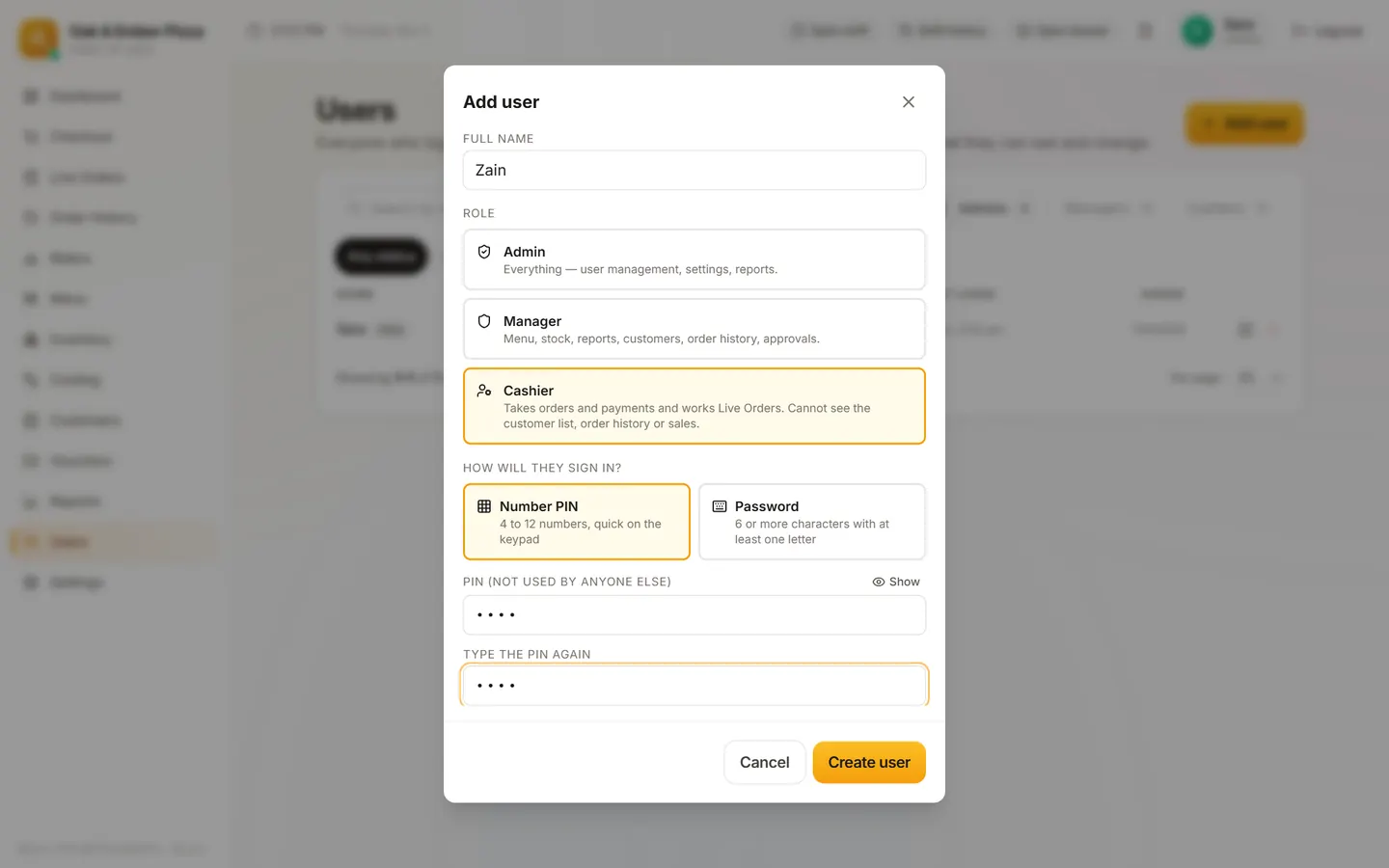
- Sign in as an Admin and open Users in the sidebar.
- Click Add user.
- Type their full name, pick the role, and set a PIN or password. Each PIN must be different from everyone else's.
- Click Create user.
Change a PIN or switch someone off
In Users, open the person and use Change PIN or password. When someone leaves, switch their user off rather than sharing their PIN.
Signing in
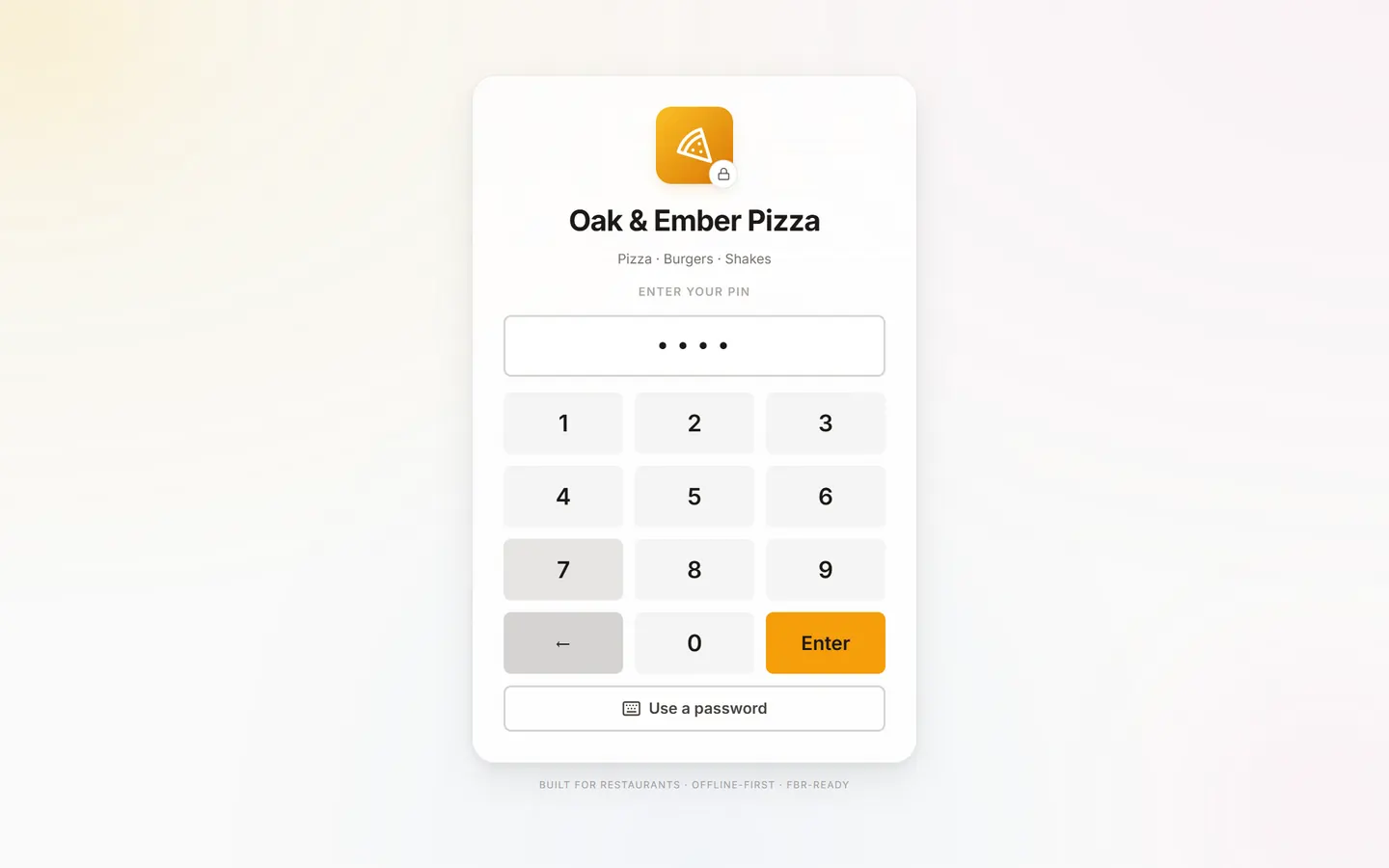
The sign-in screen opens on the keypad: Enter your PIN, then Sign in. Staff with a password tap Use a password.
Stuck on a step?
Message us on WhatsApp with a photo of the screen. We can also join a video call and fix it with you.