Pixel & Oak POS docs
Printers and cash drawer
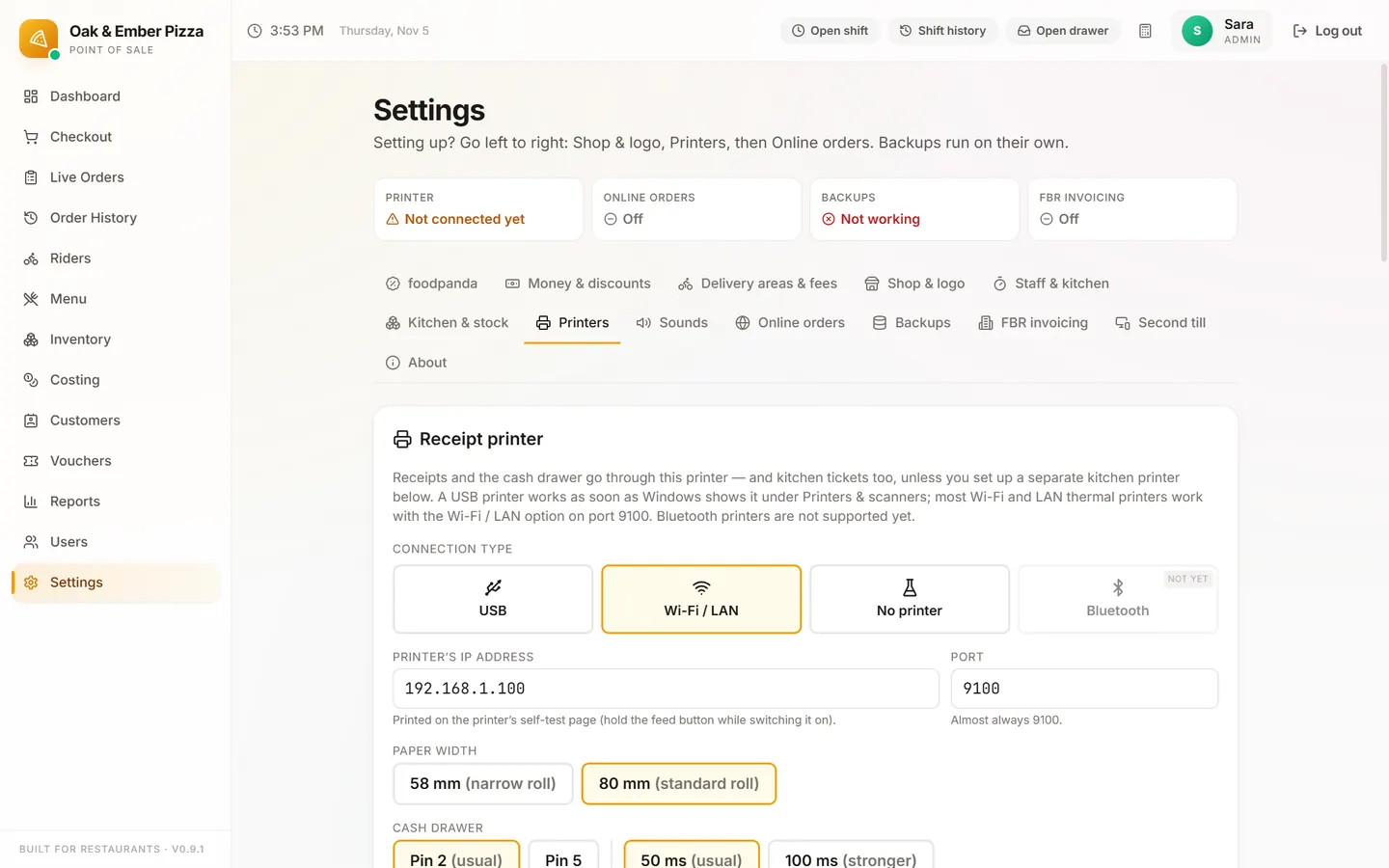
Open Settings → Printers. It has three cards: Receipt printer, What prints, and when and Kitchen printer. With no printer the till still sells and keeps each receipt as a file.
Receipt printer
- Pick how it connects: USB, Wi-Fi or LAN (Bluetooth is not supported yet).
- USB: install the printer's Windows driver first, so Windows lists the printer, then pick it from the list.
- Wi-Fi or LAN: type the printer's IP address and the port, which is almost always 9100.
- Pick the paper: 58 mm (narrow roll) or 80 mm (standard roll).
- Click Test print, then Save.
Cash drawer
The drawer plugs into the printer's drawer port, and the till opens it through the printer. On the Receipt printer card choose Opens on every sale or Cash sales only, then Test drawer.
If it doesn't open, try Pin 5 instead of Pin 2 (usual), or 100 ms (stronger) instead of 50 ms. The card's own Drawer won't open? help walks through the rest.
Kitchen printer
On the Kitchen printer card choose Same printer (kitchen tickets come out of the counter printer), or a separate Wi-Fi / LAN or USB printer, then Test print.
What prints, and when
Switch each one on or off: kitchen ticket, customer receipt, logo on receipts, the delivery bill that goes with the rider, a shop copy, refunds and reprints, and the shift report.
Stuck on a step?
Message us on WhatsApp with a photo of the screen. We can also join a video call and fix it with you.