Pixel & Oak POS docs
Open and close the shift
Payments are taken only while a shift is open. Open it with the cash in the drawer, and close it by counting the drawer note by note: the till shows what was expected, what you counted and the difference.
Open the shift
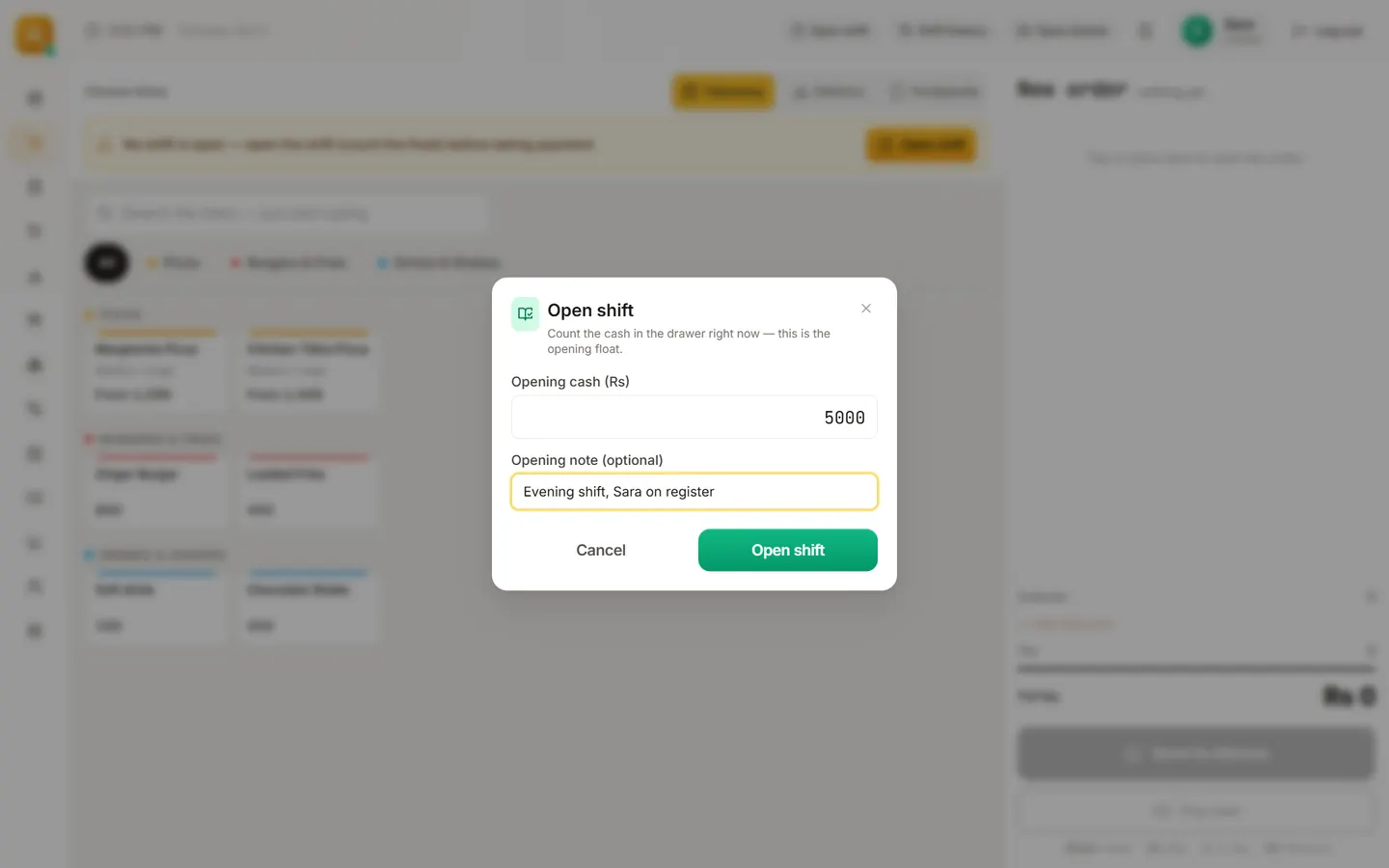
Press Open shift in the top bar and type the Opening cash, with a note if you like. Any cashier can open it. Set the usual float once in Settings → Staff & kitchen → Opening float.
Cash in and out
Cash taken out for shopping, or put in for change, goes through the wallet button next to the shift button: Cash out, Cash in or Rider tip, then Record. A cashier needs a manager's PIN for it.
Close the shift
- Press the Shift button in the top bar. Closing needs a manager or an Admin.
- Count the drawer row by row: how many of each note (Rs 5,000 down to Rs 10 in Pakistan, $100 down to $1 in the US), then the coins.
- Press Close shift. The till shows Expected cash, Counted and Over/Short.
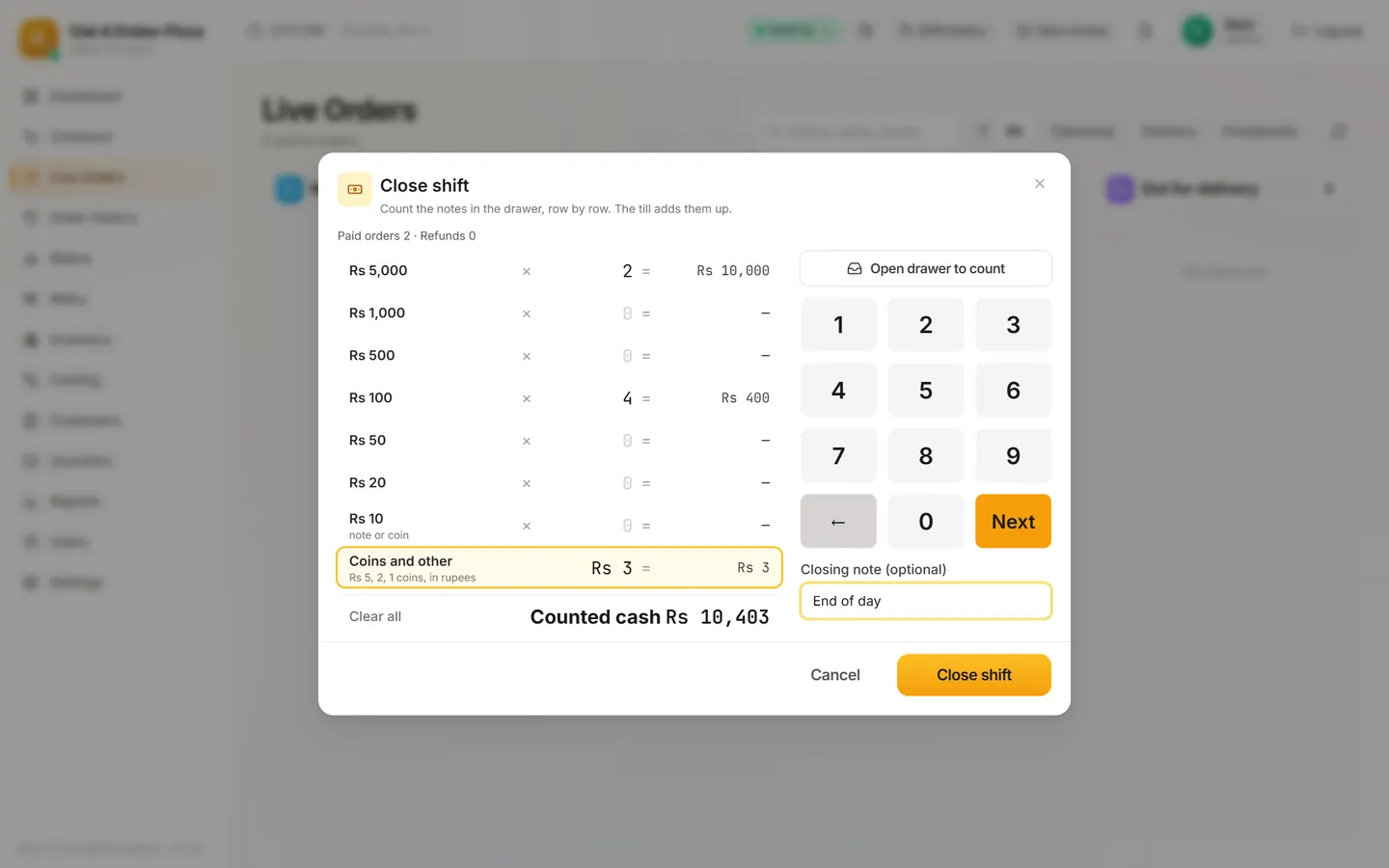
If a manager approves the close on a cashier's login, the expected cash is hidden, so the count is blind. The shift report prints at close when Shift report is on in Settings → Printers → What prints, and when, and Print again prints another copy.
Stuck on a step?
Message us on WhatsApp with a photo of the screen. We can also join a video call and fix it with you.